
The most trusted income tax e-filing platform in India
Individuals & small businesses choose Taxspanner to pay taxes, file returns & stay tax compliant. Do it yourself, get expert help, or hand it off from start to finish—let’s get your taxes done right.
For Individuals
For Businesses
The most trusted online accounting & GST compliance platform for businesses in India
All-in-one cloud-based bookkeeping platform that simplifies your GST return filing experience with error-free automated ingestion to smart reporting.
For Individuals
For Businesses
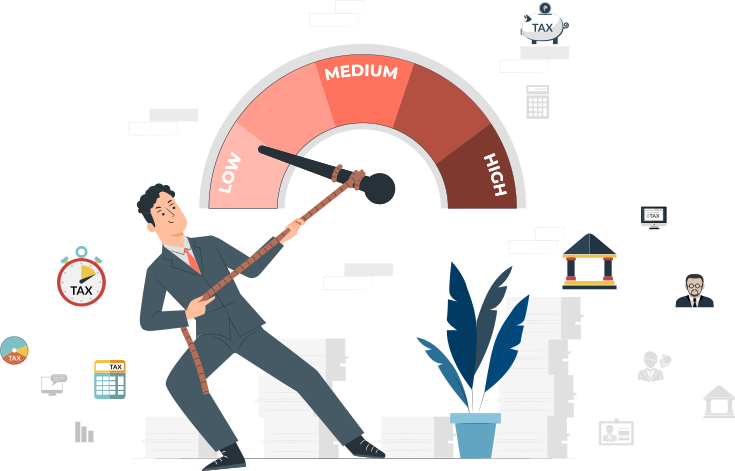
Save more, Stress less Discover tax saving secrets today!
More than 1 lakh people saved taxes for their Financial well being using Tax optimizer
For Individuals
For Businesses
The most trusted income tax e-filing platform in India
Individuals & small businesses choose Taxspanner to pay taxes, file returns & stay tax compliant. Do it yourself, get expert help, or hand it off from start to finish—let’s get your taxes done right.
For Individuals
For Businesses
The most trusted online accounting & GST compliance platform for businesses in India
All-in-one cloud-based bookkeeping platform that simplifies your GST return filing experience with error-free automated ingestion to smart reporting.
For Individuals
For Businesses

.png) Scroll down
Scroll downWhy Taxspanner
We are pioneer in Tax E-filing in India helping customers move from just tax-filing to Financial Wellness since 2007.

ERI
TaxSpanner.com is authorised as ERI by income tax department

Optimized Salary Structure
Optimized Salary Structure; Content: Following Tax-optimized salary structure to minimize your tax & maximize wealth

Save Upto 49%
You save upto 49% in filing fee as compared to competition

Financial Wellness
Helping taxpayers transition from filing to financial wellness
.png)
Plans For Everyone
Different payment plans – annual, bi-annual, quarterly to fit your needs

Tax Expertise
E-filing since 2007. Recognition as largest e-filing company in India
Services
.png) For Individuals
For Individuals
File Income Tax Return in 3 minutes and create wealth.
 For Business/Professionals
Income Tax Solutions for Professionals & Businesses.
LIVE ITR filing with video call option!
Connect with our tax experts on a video call
File tax
FILE TAX (Assisted - Live ITR)
₹ 2,999/-
₹ 1499/-
- 50 % OFF
Get your return prepared & e-filed by our expert.
This includes :
- Tax-expert Assisted live filing in just 1 hour
- Via google meet/zoom
- Single/multiple Form 16
- PACKAGE VALIDITY: 24 HOURS
Buy Now
Know MoreFile tax
CAPITAL GAINS (Live ITR)
₹ 5,999/-
₹ 2999/-
- 50 % OFF
Get your return prepared & e-filed by our expert
This includes :
- Tax-expert Assisted live filing in just 1 hour
- Via google meet/zoom
- Tax filing with Capital Gains/ESOPs/ RSU
- PACKAGE VALIDITY: 24 HOURS
Buy Now
Know MoreFile tax
FOREIGN INCOME SOLUTIONS (Live ITR)
₹ 13,999/-
₹ 6999/-
- 50 % OFF
Get your return prepared & e-filed by our expert
This includes :
- Live Tax-expert Assisted filing in just 1 hour
- Via google meet/zoom
- Taxation in multiple countries, DTAA benefits
- PACKAGE VALIDITY: 48 HOURS
Buy Now
Know More
16+
Years of Service
.png)
1M+
Happy Customers
.png)
1000+
Chartered Accountants

30+
Major Cities
Customer Testimonials


@2x.png)
Trusted by 1 Million+ individuals and businesses in India
Frequently Asked Questions
Tax Optimizer (TO) helps you optimize taxes, i.e., to plan and save more tax within your CTC. It also helps to cut your tax outgo by restructuring income, expenses and investments for deduction in the year based on the tax laws . TO's prime objective is to maximize tax savings. In fact, it helps you to decide the right tax saving investments for you keeping in view the tax efficiency
- Pay The Minimum Possible Tax
- Achieve Your Financial Goals with Early Planning
- Invest The Saving To Build Financial Security
- Hire Experts To Leverage All Available Options
Only then does the government acquire rights over the prepaid taxes as its own revenue. Filing of return is critical for this process and, hence, has been made mandatory. Failure will attract levy of penalty
Media Buzz


Partnerships and Alliances





Try TaxSpanner Today
TaxSpanner offers an end-to-end tax compliance solutions to individuals, Professionals and Businesses.


Sign up to our newsletter
Stay up to date with the latest news, announcements and articles.

TaxSpanner.com is one of India’s largest and most trusted websites that offers online preparation of accounts books and filing of TDS, GST, individual Income Tax Returns (ITR). Established in 2007, TaxSpanner is based out of New Delhi. Since then, it has grown to build very large customer base in this market segment.